Connect your menus
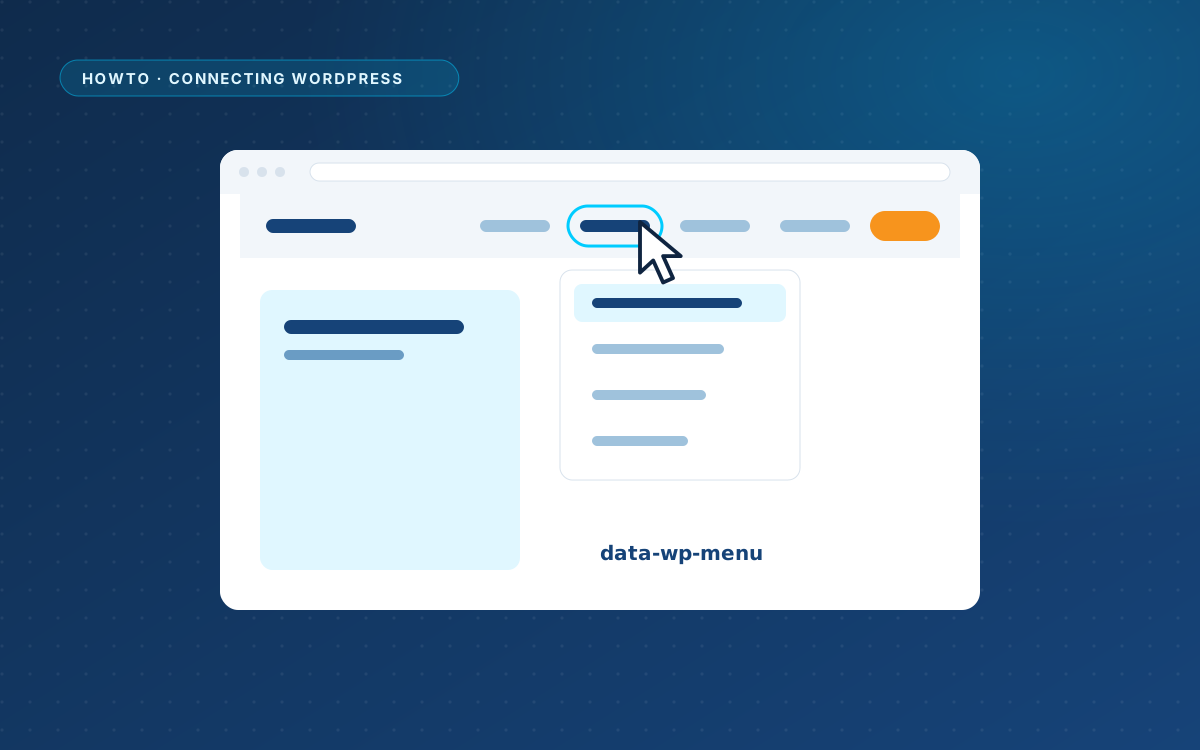
The menu in an AI design is a list of fixed links. WPPasteKit turns it into a real WordPress menu, while the markup and classes of the design stay the same.
Mark the menu
Add data-wp-menu to the list that holds the menu links. Use primary, footer, or the slug of any menu:
<nav>
  <ul class="menu" data-wp-menu="primary">
    <li><a href="/" class="is-active">Home</a></li>
    <li><a href="/about/">About</a></li>
    <li><a href="/contact/">Contact</a></li>
  </ul>
</nav>
Make this my site does this for your main navigation automatically, marker or no marker.
Create the menu from the design
In the WordPress menus box on the edit screen, click Create WordPress menu from these links. WPPasteKit turns the links of the design into a menu and links it to the location. From then on you manage the items under Appearance > Menus.
How the design stays intact
- The classes of the
liandaelements in the design are reused for every item. - The active class of the design, such as
is-active,currentornav__link--active, marks the current page. Set a different one withdata-wp-active-classon the list. - Classes that only some items have, such as a button-style link, are kept per item in the CSS Classes field of that menu item.
- Nested lists become submenus.
- Without a linked menu, the links of the design stay, so nothing breaks.
Standard menu markup
Prefer the standard WordPress menu markup? Use {{menu.primary}} instead of a marked list.
Links to sections
A link like #pricing only works on the page that has that section. In a shared header, write /#pricing, so the link also works from the blog and every other page.