Editing your site
Move borrowed images into your media library
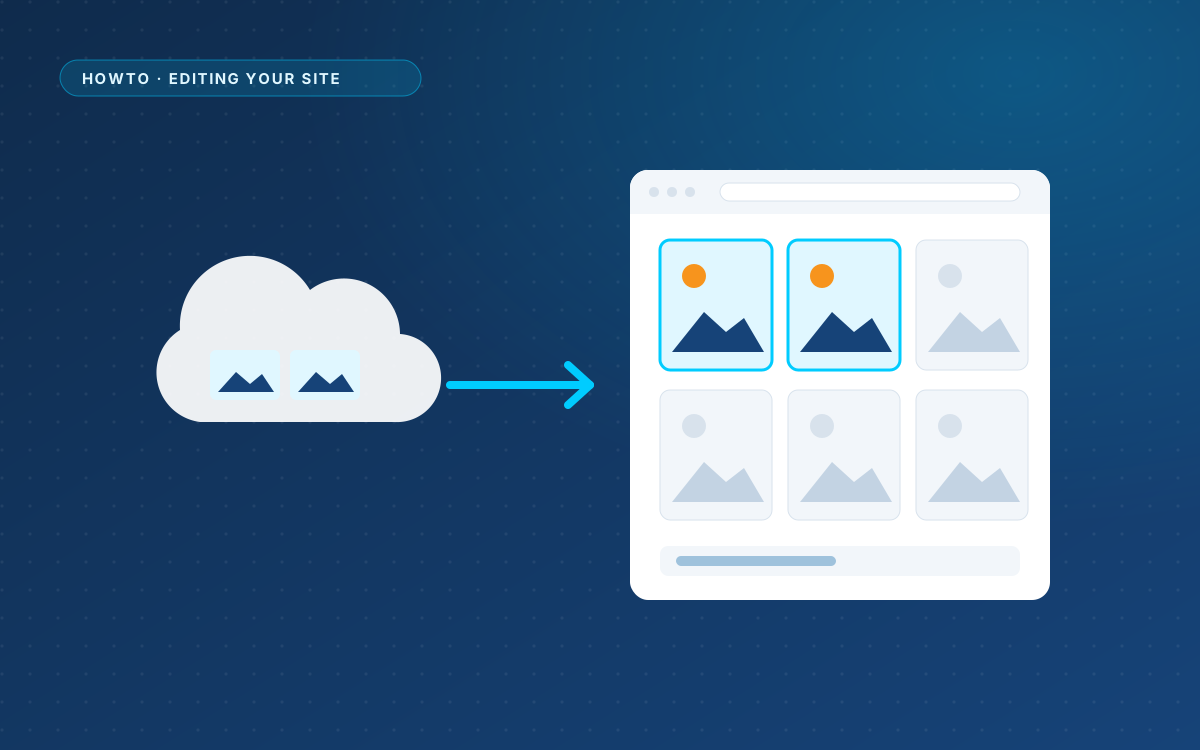
AI designs often point at images on other websites, such as Unsplash, Picsum or placehold.co. They work in the preview, but they do not belong to your site.
Why import them
- An image on another website can change or disappear.
- Images in your media library can be swapped by clicking them in the preview.
- You decide on the file, the size and the alt text.
Import them
- Open the page edit screen.
- The box Images from other websites shows how many images the design borrows.
- Click the import button in that box.
- WPPasteKit downloads the images into the media library and rewrites the design to use the local copies:
src,srcset, CSSurl()and inline styles.
Good to know
- One run imports up to 30 images, of up to 12 MB each. Run it again for more.
- Images that were imported before are reused, not downloaded twice.
- Images embedded as data URIs and files already on your site are left alone.
- When one download fails, WPPasteKit reports it and continues with the rest.
Replace placeholders with your own photos
Images from placehold.co are grey boxes with a size in them. After the import, click each one in the preview and choose your own photo from the media library.
Filed under Editing your site
Back to the homepage