Add a second page to your site
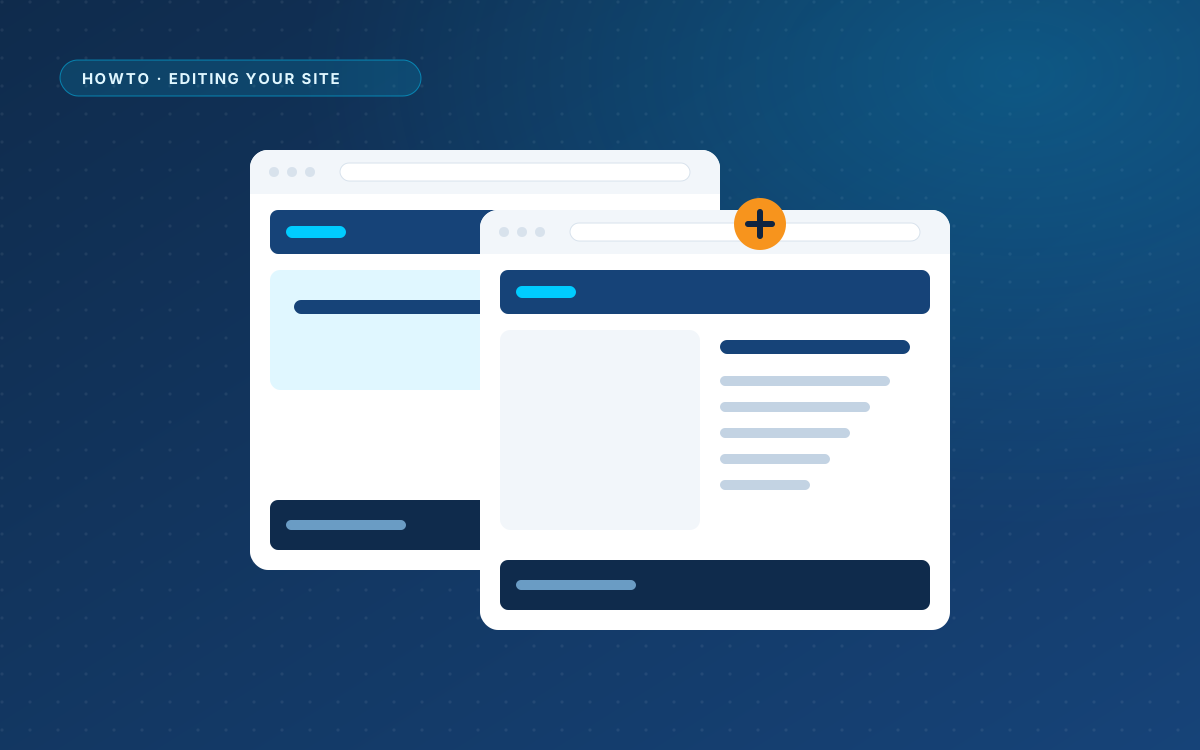
After Make this my site, your header, footer and styling are shared across the site. A second page only needs its own content.
Ask your AI for the content only
Tell your AI that the site already has a header, footer and styling. Give it the CSS from WPPasteKit > Site styling, so it reuses your classes and colours instead of inventing new ones. Then describe the new page.
My site already has a header, a footer and the stylesheet below. Write only the main content of an About us page, using these classes. Sections: our story, the team, how we work, and a contact section with a spot for a form.
Paste it
Create a new WPPasteKit page and paste the answer. If the AI included a header, footer or its own copy of the styling anyway, the box Header, footer and styling offers to remove them.
Add the page to your menu
Go to Appearance > Menus, add the new page to your main menu and save. It appears in the menu of your design straight away, with the same markup and classes as the other items.
Header and footer per page
Each page can show the site header and footer automatically, always, or never. Automatically means they appear unless the page has its own <header> or <footer> element. Choose never for a landing page without navigation.