Change texts and images by clicking them
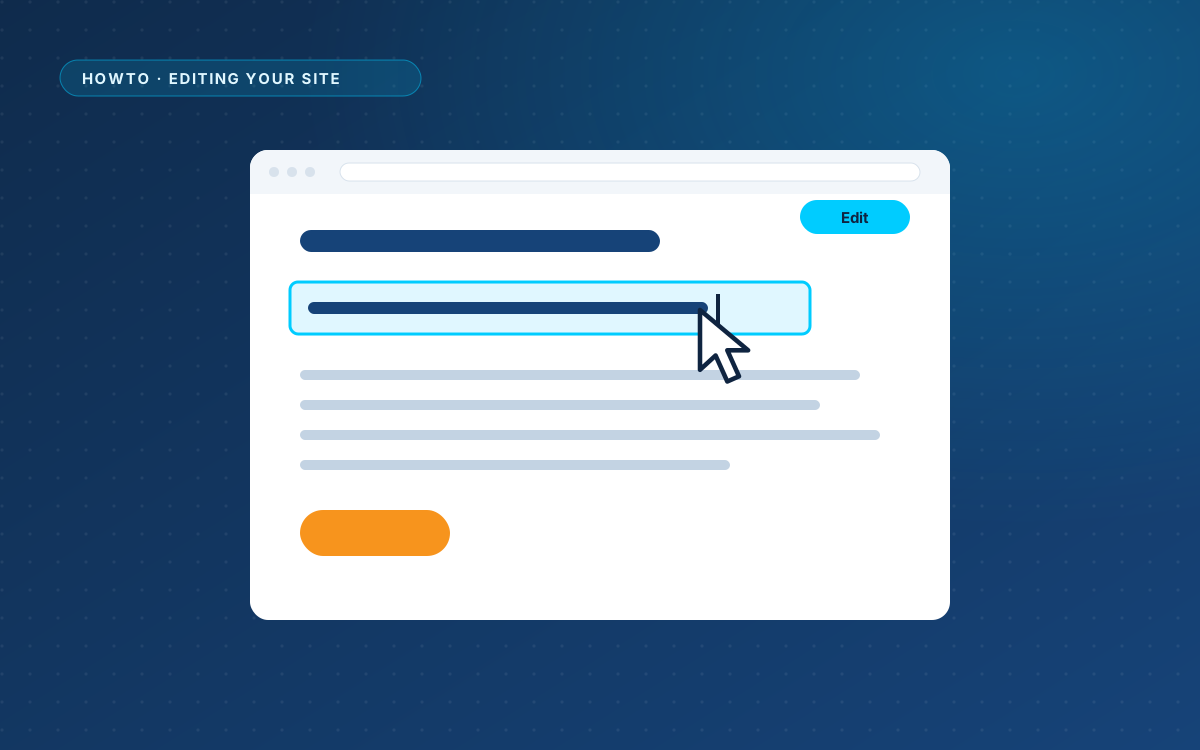
You do not need the code to change a sentence. The preview of a WPPasteKit page is also the place where you edit it.
Change a text
- Open the WPPasteKit page in WordPress. On a page with content, the preview comes first and the code is one button away.
- Click the text you want to change: a heading, a paragraph, a button, a list item.
- Type over it.
- Click Update.
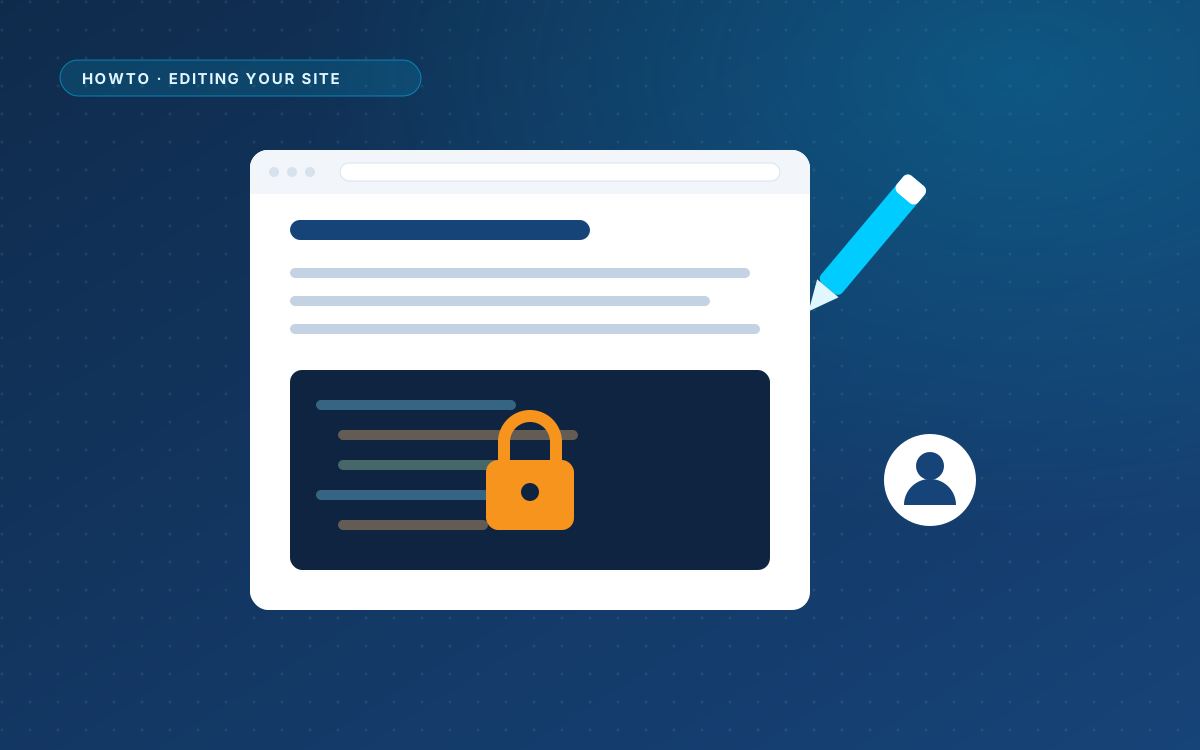
Every run of visible text is its own spot, including text next to an icon and a few words around a bold word. Text inside scripts, styles, SVG graphics and text areas is not offered, so you cannot break those by accident.
Change an image
Click an image in the preview and choose another one from the media library.
Where your change is stored
What you type is written into the page itself. The code editor and the website show the same thing, and WordPress keeps a revision of the previous version. To undo a change, open Revisions on the edit screen and restore the version you want.
Shortcodes
Type a complete shortcode over a text and it stays a shortcode. Anything else you type is shown as plain text, so a stray < or & cannot break the page.
When clicking is not enough
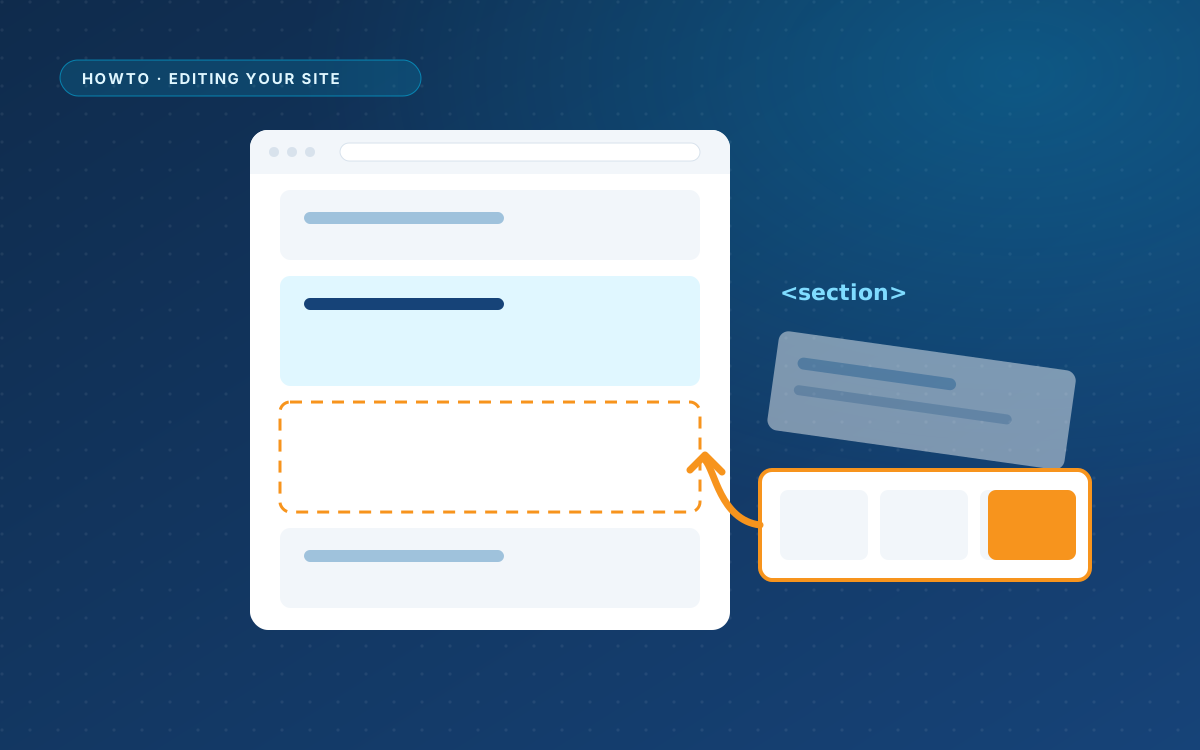
Clicking changes words and images. For a different layout, such as an extra pricing card or a new section, you replace a section in the HTML. The next guide shows how.