Paste your first page and make it your site
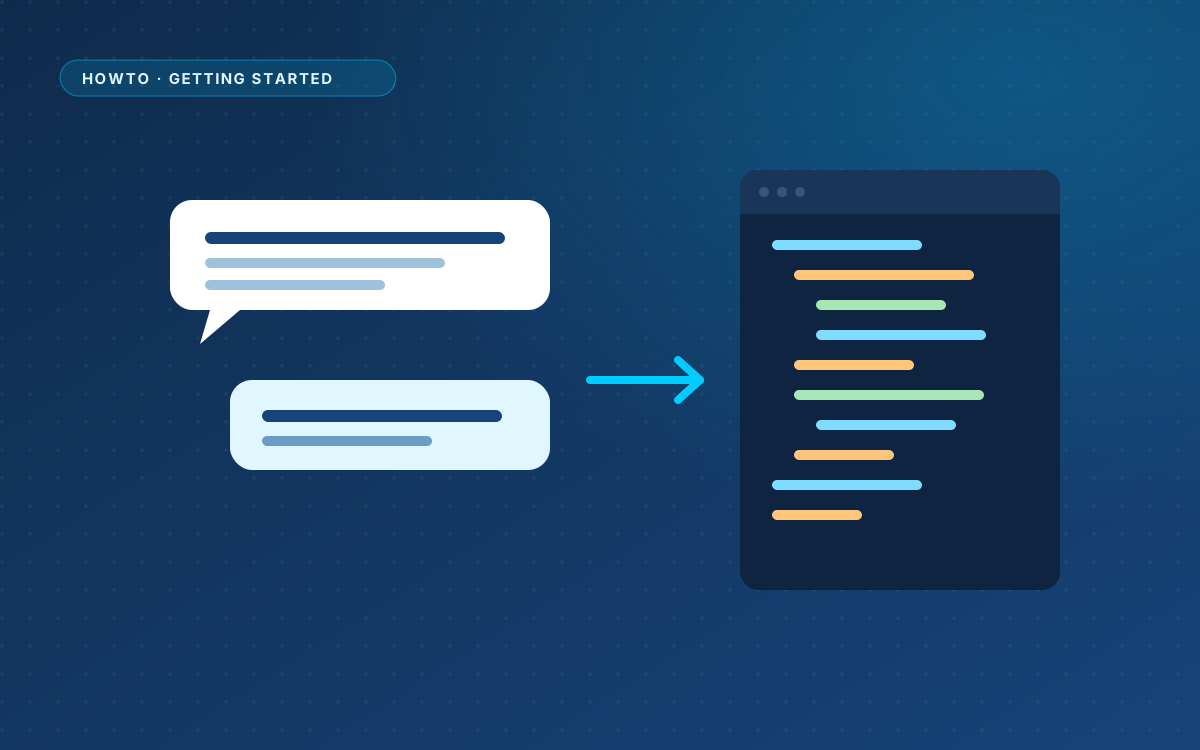
You have a complete HTML document from your AI. This is how it becomes a live WordPress page.
Paste the answer
- Click New WPPasteKit page, or + New in the admin bar.
- Give the page a title. This is the title WordPress and your SEO plugin use.
- Paste the complete HTML document into the code editor.
- Look at the preview, and switch between desktop, tablet and mobile to check the layout.
Read the code check
WPPasteKit checks the design for common HTML, responsive and asset issues, and gives hints about the menu, the form and the header and footer. Fix what it reports, or give the report to your AI and paste the corrected version.
Make this my site
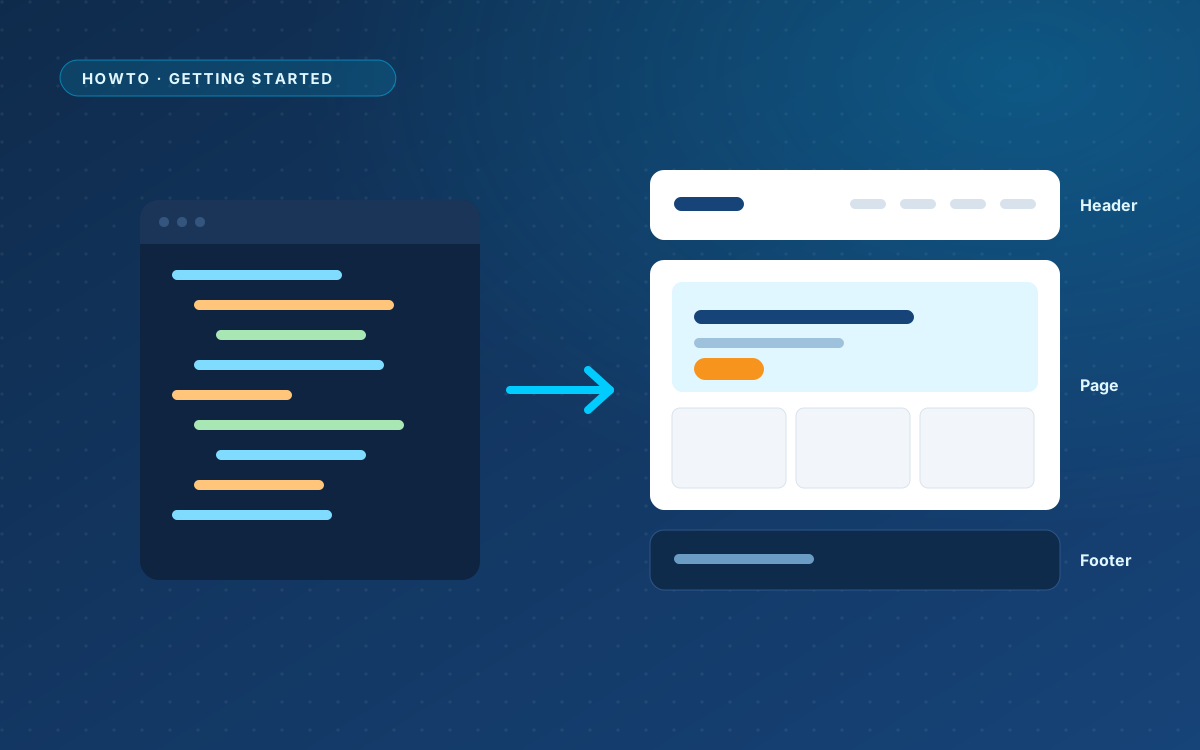
The AI gave you one file: a header with a menu, the page itself, a footer and all the CSS. The box Header, footer and styling on the edit screen pulls that apart with one click:
- the header and footer become components that are shown on every page;
- the stylesheet moves to WPPasteKit > Site styling;
- the navigation becomes a real WordPress menu;
- the page keeps only its own content.
From now on, every next page you paste can skip the header, footer and styling.
Publish and check
Click Publish. Open the page on the front end and check the menu, the links and the form. From now on you change texts by clicking them in the preview.
Header hidden under the admin bar?
When you are logged in, WordPress moves the page 32 pixels down for the admin bar. WPPasteKit moves sticky headers out from under it for you. If a header still hides, add a rule like this to your site styling, with the class of your own header:
body.admin-bar .site-header { top: 32px; }